If your ERP and CRM don’t share data, your sales team pays for it in lost time, bad quotes, and missed revenue. The fix is simple in theory: plan the rollout, clean the data, test before go-live, roll it out in steps, and tie it to streamlining sales processes.
I’d boil the article down to this:
- Set ownership first so CRM and ERP don’t fight over the same fields
- Clean data before sync because bad records spread fast
- Pick the right setup based on cost, control, and upkeep
- Test with messy live-like records, not perfect samples
- Roll out in phases and watch errors, latency, and failed records
- Make sales use better data for quotes, inventory checks, orders, invoices, and forecasts
A few numbers stand out: companies can lose 20% to 30% of yearly revenue from siloed data, 76% of CRM users say less than half their CRM data is accurate and complete, and 70% of CRM projects fail from poor user adoption rather than tech issues.
Here’s the short version of the rollout path:
| Step | What I’d focus on |
|---|---|
| 1. Plan | Goals, scope, owners, security, success metrics |
| 2. Clean data | Duplicates, missing fields, field rules, record matching |
| 3. Build and test | Sandbox, retry logic, alerts, pilot sync, UAT |
| 4. Roll out | Cutover window, training, post-go-live monitoring |
| 5. Align with sales | Read-only finance data, current pricing, auto order flow, accurate forecasting |
That’s the core idea: connect the systems in a controlled way so reps can trust what they see and act on it without extra manual work.
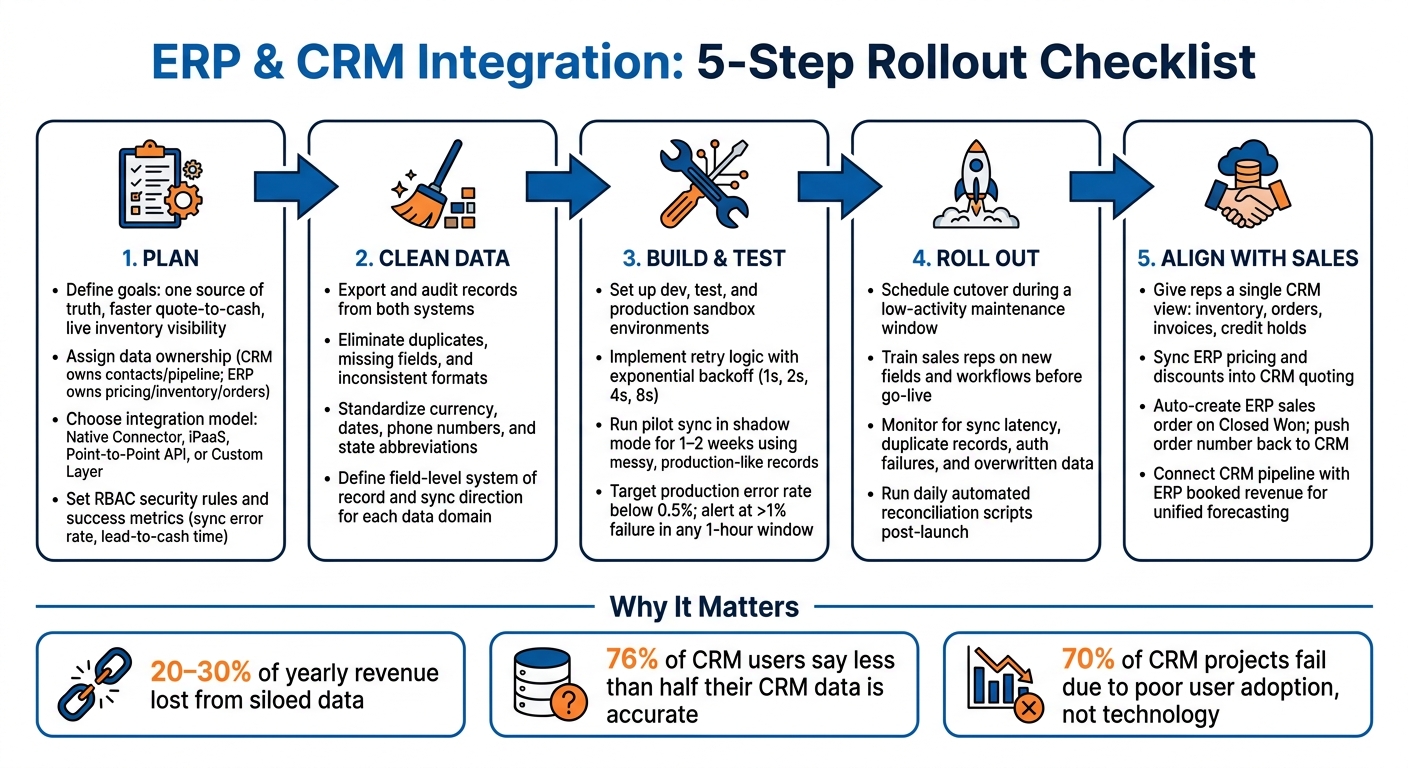
ERP & CRM Integration Rollout: 5-Step Checklist
Integration Best Practices CRM and Accounting/ERP
sbb-itb-8aac02d
Checklist 1: Plan the Integration Before Any System Work Starts
Plan ownership, scope, and data rules before you build anything. That cuts down on rework, helps avoid sync issues, and keeps sales, ops, and IT on the same page. Start with ownership. Then move into data and architecture.
Define Business Goals, Scope, and Owners
Set clear goals from the start: one source of truth, faster quote-to-cash, live inventory visibility, and better forecasts and pipeline management.
If you're rolling this out in phases, begin with read-only ERP data in CRM. That lets sales check credit status, stock levels, and invoice history while IT tests field mappings.
Use this ownership split:
| Data Domain | Master of Record |
|---|---|
| Customer contacts, leads, and pipeline | CRM |
| Pricing, tax rules, credit limits, inventory, and product master data | ERP |
| Customer addresses and contact updates | Both (bi-directional) |
| Sales orders and invoices | ERP |
For shared fields, assign named owners. That way, when data conflicts pop up, someone reviews them instead of letting one system overwrite the other.
Once ownership is set, match your integration model to those rules.
Choose the Right Integration Model
Pick the model that fits your systems, team, and budget. This choice shapes cost, upkeep, and how fast data moves.
| Integration Model | Strengths | Limitations | Complexity | Best Fit |
|---|---|---|---|---|
| Native Connector | Low cost; quick to activate; vendor-supported | Limited flexibility; locked to vendor roadmap | Low | Standard, out-of-the-box setups |
| iPaaS / Middleware (e.g., Celigo, Workato) | Scalable; centralized error handling; holds up through API changes | Recurring platform costs; some latency | Medium | Mid-market firms connecting multiple standard apps |
| Point-to-Point API | Direct flow; no middleware costs; full control | Brittle during system updates; hard to maintain | High | Small teams with exactly two systems and in-house developers |
| Custom Integration Layer | Maximum flexibility; tailored to unique business logic | Highest initial cost; requires ongoing engineering | Very High | Large enterprises with complex or legacy systems |
Use real-time sync for inventory and credit checks. Use batch sync for catalogs and historical reports.
After you choose the architecture, lock in security rules and success metrics before build work starts.
Set Security Rules and Success Metrics
Security calls made late are expensive to fix. Set role-based access control (RBAC) upfront so sales reps can view ERP financial fields like credit limits without being able to change them. Put RBAC and audit logging in place before the build begins.
Track these metrics before go-live: sync error rate, lead-to-cash time, order processing time, and sales rep manual-entry time.
Checklist 2: Clean and Map Data Before Connecting Systems
Dirty data never sits still. It moves from one system to the next and drags the same problems with it. According to research, 76% of CRM users report that less than half of their CRM data is accurate and complete. If you connect a messy CRM to an ERP, you don't solve the issue - you spread it across both platforms.
That’s why data cleanup comes before the integration build, not after. Once the scope is set, clean the data before any sync goes live.
Audit Data and Standardize Core Fields
Start with a full export from both systems. Then review the core record types side by side: customer accounts, contacts, products, pricing, and orders.
Look for the usual trouble spots:
- Duplicates
- Missing required fields
- Inconsistent formats
For U.S.-based teams, use the same formatting rules in both systems before syncing:
- Currency: USD, such as $1,250.00
- Dates: MM/DD/YYYY, such as 06/14/2026
- Phone numbers: +1 (XXX) XXX-XXXX
- State names: USPS abbreviations, such as CA, TX, NY
- Units: imperial
Use fuzzy name matching to spot possible duplicates, then confirm them with Tax IDs or email addresses. If a record is missing a required field like country, email, or SKU, reject it and send back a clear error. That’s a lot better than letting bad records slip through and cause problems later.
Define System of Record and Field Mapping Rules
Map shared fields one by one, and assign a single system of record for each field. If both systems think they own the same field, trouble usually follows.
Here’s the recommended ownership split for the most common data domains:
| Master Data Domain | System of Record | Sync Direction |
|---|---|---|
| Customer Account | CRM | Bi-directional |
| Contacts | CRM | Bi-directional |
| Product & SKU | ERP | ERP → CRM |
| Pricebook | ERP | ERP → CRM |
| Inventory Levels | ERP | ERP → CRM |
| Credit Limits | ERP | ERP → CRM |
| Sales Orders | ERP | CRM → ERP (on Close) |
For status values, use a translation table instead of hardcoding mappings. For example, map ERP "Status 10" to CRM "Open" in a table that any team member can read and update. It keeps the logic plain and saves time when statuses change.
Also, store the ERP Customer ID in a CRM field. That way, records stay linked even if a company name changes or a contact updates their email address.
Run a Pilot Sync Before Full Go-Live
Don’t test with tidy sample records that look nice in a spreadsheet. Test with the kind of data your team deals with every day: missing fields, special characters, $0.00 line items, and multi-currency deals.
Run the integration in shadow mode for one to two weeks. During that time, the integration should process changes and log results instead of writing to live systems. Then compare those outputs against what should have happened.
It also helps to manually update the same record in both systems at the same time. That’s one of the fastest ways to check whether your conflict rules hold up when things get messy.
Any record that fails to sync should go to a dead-letter queue for manual review. Never let failed records vanish without a trace.
Use what you learn in the pilot to fix mapping issues and conflict rules before build and rollout. Once stakeholders sign off, move into the phased build and rollout.
Checklist 3: Build, Test, and Roll Out the Integration in Phases
Once your data is clean and field ownership is clear, it’s time to build the integration step by step. Don’t try to switch everything on at once. A phased rollout gives you room to test, catch problems early, and avoid chaos for the sales team.
Set Up Environments, Error Handling, and Performance Controls
Before you write any integration logic, split your work across separate development, test, and production environments. Use a sandbox to test system upgrades and API changes without interrupting live sales activity.
A few controls should be in place before testing begins:
- Implement retry logic with workflow-aware safeguards and exponential backoff. Retry failed API calls at increasing intervals, such as 1s, 2s, 4s, and 8s, so you don’t hammer a busy system.
- Send repeated failures to an exception queue so data stewards can review them.
- Use correlation IDs across the ERP, CRM, and middleware to trace a single transaction from start to finish.
- Set automated alerts when sync failures go above 1% in any one-hour window or when API usage reaches 70% of capacity.
- Aim for a production error rate below 0.5%.
For high-volume data like order history or invoices, use Bulk APIs or batch sync. That helps you avoid API governor limits. Save real-time sync for fields that can’t wait, like inventory levels and credit limits.
Test End-to-End Sales and Order Workflows
Once the build is ready, test the full quote-to-order flow before launch. Use production-like records and run tests across the full sales workflow: quotes, orders, customer updates, pricing, and status changes. The goal is simple: make sure each step syncs the way it should between systems.
Then run automated reconciliation scripts that compare record counts and key totals between the ERP and CRM every day during testing and weekly after go-live.
For user acceptance testing (UAT), bring in actual sales reps, not just IT. That part matters more than many teams think. About 70% of CRM projects fail because of poor user adoption, not technical problems.
Plan Cutover, Training, and Post-Go-Live Monitoring
Schedule cutover during a low-activity maintenance window. Beforehand, review vendor release notes for API changes so nothing catches you off guard. Train sales reps on new fields, workflows, and exception handling before go-live, not after.
After cutover, pay close attention to the problems that most often throw off quotes, orders, and forecasts:
| Post-Go-Live Issue | Likely Root Cause | Recommended Remediation |
|---|---|---|
| High sync latency | API rate limiting or concurrent bulk operations | Optimize API call frequency; move non-critical data to batch sync |
| Duplicate records | Lack of idempotent upserts or weak matching rules | Implement unique external IDs; run deduplication scripts |
| Data validation rejections | Mismatched required fields or schema drift | Update field mapping rules; add a pre-write validation layer |
| Authentication failures | Expired API tokens or rotated passwords | Automate token refreshes; monitor authentication health |
| Overwritten data | Undefined system of record for specific fields | Enforce field-level ownership rules established during mapping |
After rollout starts to settle down, the next move is to line up the integration with day-to-day sales workflows.
Checklist 4: Align the Integration With Daily Sales Processes
An integration that doesn't help reps sell is just busywork. Once ownership, mapping, and testing are in place, the next step is simple: make the integration work inside the day-to-day flow of sales by applying proven CRM strategies.
Give Reps a Single View of Customers, Products, and Orders
A rep should be able to open a CRM account and immediately see contact notes, inventory, order history, invoice status, fulfillment updates, and active credit holds. No tab-hopping. No system switching. No digging around for answers.
That only works if the right data syncs in the right direction. Here are the data points that matter most and why sales teams care about them:
| Data Entity | Benefit for Sales Reps |
|---|---|
| Products | Quote from the current catalog with the right SKUs, list prices, and customer-specific discounts |
| Inventory | Set realistic delivery expectations during quoting |
| Orders | Respond to customer inquiries without calling the warehouse |
| Invoices | Identify accounts on credit hold before sales calls |
Keep ERP-owned financial fields read-only in CRM. That way, reps can see what they need without accidentally changing finance data.
And that single view shouldn't depend on manual lookups. It should come straight from the ownership rules set earlier.
Keep Pricing, Discounts, and Forecasts Consistent
Once reps can see the right data, the next move is to tighten the quote-to-order handoff.
Make ERP the source of truth for pricing, discounts, and currency. When those rules sync into the CRM quoting process, reps stop leaning on old spreadsheets and start quoting from current, finance-approved terms.
When a deal hits Closed Won, create the ERP sales order automatically. Then send the ERP order number and status back into CRM so the rep can track what happens next.
Forecasting needs the same kind of alignment. Connect CRM pipeline data with ERP booked orders and revenue so sales and finance are looking at the same numbers, not two different versions of the story.
Conclusion: The Core ERP-CRM Integration Checklist
ERP-CRM integration starts paying off when it makes quoting faster, handoffs cleaner, and forecasting more reliable. Treat it like an operating discipline, not a one-time IT project.
FAQs
How long does ERP and CRM integration usually take?
ERP and CRM integration usually takes 2 to 6 months. The timeline depends on how complex the setup is.
A basic integration may be done in 2–4 weeks. More complex, enterprise-level projects can take up to 6 months.
What data should sync in real time vs. in batches?
Sync real-time data for customer-facing details that need to stay current, like inventory levels, order status, payment status, and account updates.
Use batch sync for data that doesn’t need instant updates, such as historical reports and bulk customer record changes.
Who should own the ERP and CRM integration after go-live?
After go-live, ownership should sit with the system responsible for each data type. Set that governance up front, and make roles and responsibilities clear from day one.
For example, the CRM should own relationship data, while the ERP should own financial records. That split helps avoid conflicts and makes day-to-day maintenance much easier.